


Advertising seems to be blocked by your browser.
The ads help us provide this software and web site to you for free.
Please support our project by allowing our site to show ads.
Home /
Manufacturers /
Realtek /
Realtek PC Camera Driver /
USB/VID_0BDA&PID_58CE&MI_00 /
10.0.14393.11242 Dec 15, 2016
Driver for Realtek Realtek PC Camera Driver - downloading and installing it
Realtek PC Camera Driver is a Imaging Devices hardware device. This driver was developed by Realtek. USB/VID_0BDA&PID_58CE&MI_00 is the matching hardware id of this device.
1. Manually install Realtek Realtek PC Camera Driver driver
- You can download from the link below the driver setup file for the Realtek Realtek PC Camera Driver driver. The archive contains version 10.0.14393.11242 dated 2016-12-15 of the driver.
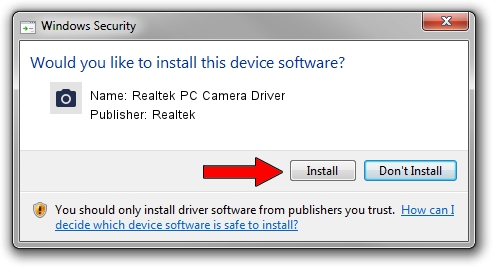
- Start the driver installer file from a user account with administrative rights. If your User Access Control (UAC) is started please accept of the driver and run the setup with administrative rights.
- Go through the driver setup wizard, which will guide you; it should be pretty easy to follow. The driver setup wizard will analyze your computer and will install the right driver.
- When the operation finishes restart your PC in order to use the updated driver. It is as simple as that to install a Windows driver!
The file size of this driver is 0 bytes (0 B)
Driver rating 3 stars out of 87287 votes.
2. The easy way: using DriverMax to install Realtek Realtek PC Camera Driver driver
The most important advantage of using DriverMax is that it will install the driver for you in the easiest possible way and it will keep each driver up to date, not just this one. How easy can you install a driver using DriverMax? Let's see!
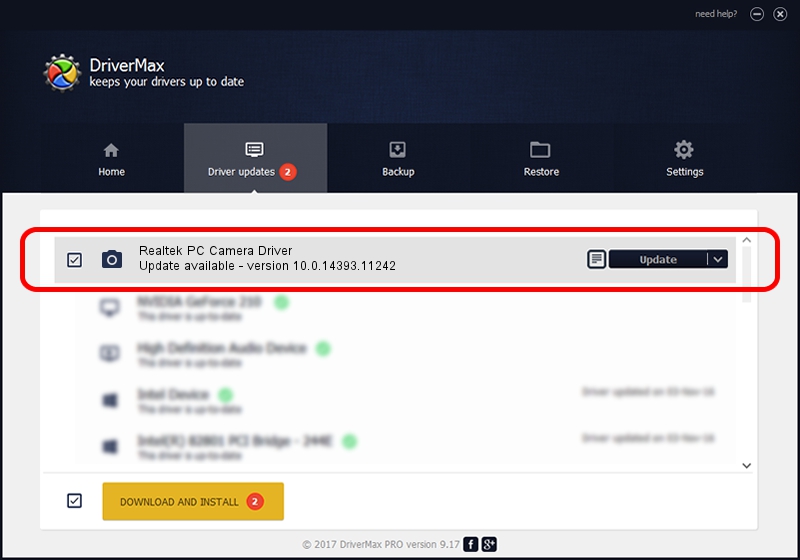
- Start DriverMax and click on the yellow button named ~SCAN FOR DRIVER UPDATES NOW~. Wait for DriverMax to scan and analyze each driver on your PC.
- Take a look at the list of available driver updates. Scroll the list down until you find the Realtek Realtek PC Camera Driver driver. Click on Update.
- Finished installing the driver!

Aug 27 2024 11:20PM / Written by Andreea Kartman for DriverMax
follow @DeeaKartman