


Advertising seems to be blocked by your browser.
The ads help us provide this software and web site to you for free.
Please support our project by allowing our site to show ads.
Home /
Manufacturers /
Intel Corporation /
Intel R HD Graphics 3000 /
PCI/VEN_8086&DEV_0116&SUBSYS_21DA17AA /
6.14.10.5430 Nov 09, 2012
Download and install Intel Corporation Intel R HD Graphics 3000 driver
Intel R HD Graphics 3000 is a Display Adapters hardware device. The developer of this driver was Intel Corporation. The hardware id of this driver is PCI/VEN_8086&DEV_0116&SUBSYS_21DA17AA.
1. Intel Corporation Intel R HD Graphics 3000 - install the driver manually
- Download the setup file for Intel Corporation Intel R HD Graphics 3000 driver from the link below. This download link is for the driver version 6.14.10.5430 dated 2012-11-09.
- Start the driver setup file from a Windows account with administrative rights. If your UAC (User Access Control) is running then you will have to confirm the installation of the driver and run the setup with administrative rights.
- Go through the driver setup wizard, which should be quite easy to follow. The driver setup wizard will scan your PC for compatible devices and will install the driver.
- Shutdown and restart your computer and enjoy the updated driver, it is as simple as that.
File size of the driver: 0 bytes (0 B)
Driver rating 3.2 stars out of 94080 votes.
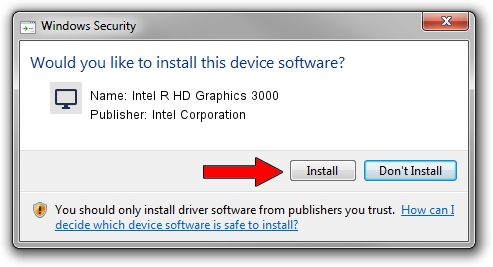
2. How to use DriverMax to install Intel Corporation Intel R HD Graphics 3000 driver
The most important advantage of using DriverMax is that it will setup the driver for you in the easiest possible way and it will keep each driver up to date, not just this one. How can you install a driver using DriverMax? Let's take a look!
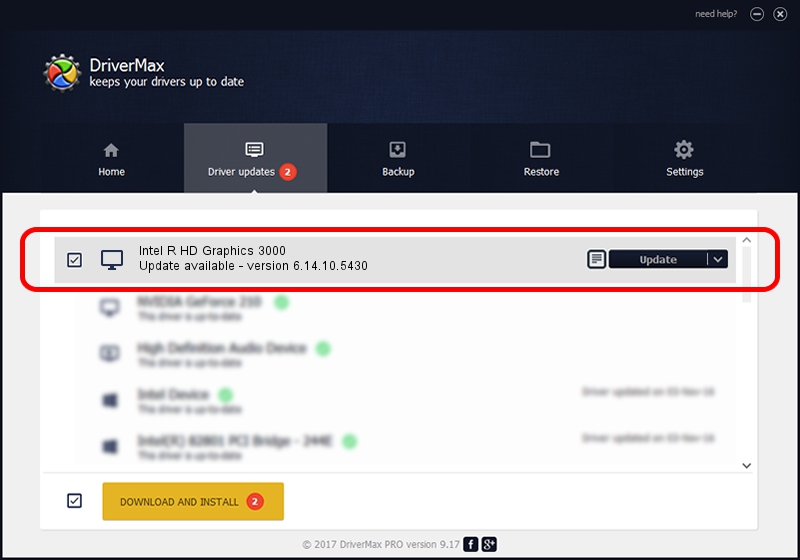
- Open DriverMax and click on the yellow button named ~SCAN FOR DRIVER UPDATES NOW~. Wait for DriverMax to analyze each driver on your PC.
- Take a look at the list of driver updates. Search the list until you find the Intel Corporation Intel R HD Graphics 3000 driver. Click the Update button.
- Finished installing the driver!

Jul 13 2016 2:43AM / Written by Daniel Statescu for DriverMax
follow @DanielStatescu