

Advertising seems to be blocked by your browser.
The ads help us provide this software and web site to you for free.
Please support our project by allowing our site to show ads.
Home /
Manufacturers /
KME /
E-Mail Multimedia Keyboard for USB 64-bit /
USB/VID_0B38&PID_0002&MI_01 /
2.1.0.127 Oct 27, 2006
KME E-Mail Multimedia Keyboard for USB 64-bit how to download and install the driver
E-Mail Multimedia Keyboard for USB 64-bit is a USB human interface device class device. This driver was developed by KME. USB/VID_0B38&PID_0002&MI_01 is the matching hardware id of this device.
1. Install KME E-Mail Multimedia Keyboard for USB 64-bit driver manually
- Download the setup file for KME E-Mail Multimedia Keyboard for USB 64-bit driver from the link below. This download link is for the driver version 2.1.0.127 released on 2006-10-27.
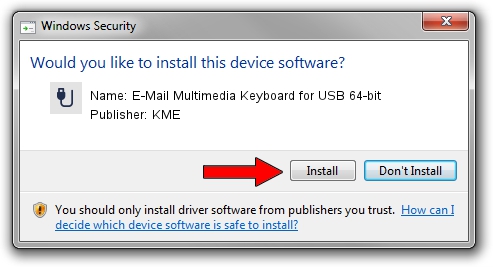
- Start the driver installation file from a Windows account with administrative rights. If your UAC (User Access Control) is enabled then you will have to confirm the installation of the driver and run the setup with administrative rights.
- Go through the driver setup wizard, which should be quite easy to follow. The driver setup wizard will scan your PC for compatible devices and will install the driver.
- Shutdown and restart your PC and enjoy the new driver, it is as simple as that.
File size of the driver: 28295 bytes (27.63 KB)
This driver was installed by many users and received an average rating of 4.2 stars out of 66407 votes.
This driver will work for the following versions of Windows:
- This driver works on Windows 2000 64 bits
- This driver works on Windows Server 2003 64 bits
- This driver works on Windows XP 64 bits
- This driver works on Windows Vista 64 bits
- This driver works on Windows 7 64 bits
- This driver works on Windows 8 64 bits
- This driver works on Windows 8.1 64 bits
- This driver works on Windows 10 64 bits
- This driver works on Windows 11 64 bits
2. How to install KME E-Mail Multimedia Keyboard for USB 64-bit driver using DriverMax
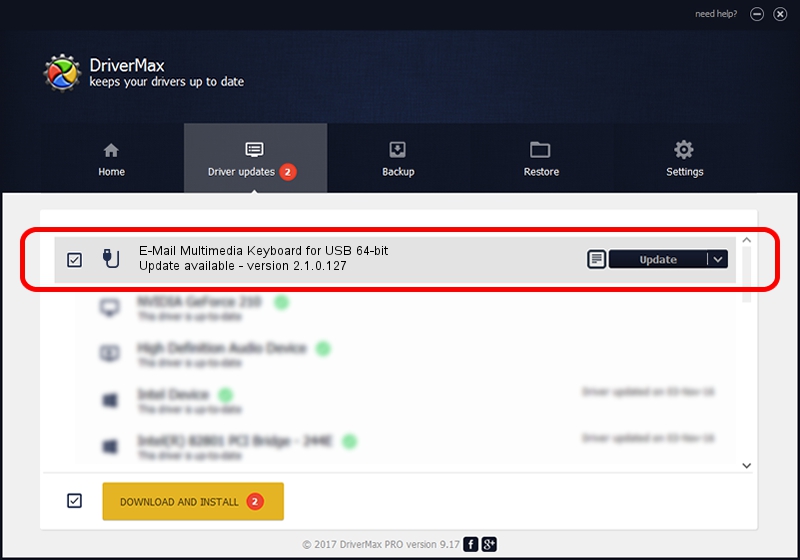
The most important advantage of using DriverMax is that it will setup the driver for you in just a few seconds and it will keep each driver up to date, not just this one. How can you install a driver using DriverMax? Let's follow a few steps!
- Start DriverMax and click on the yellow button that says ~SCAN FOR DRIVER UPDATES NOW~. Wait for DriverMax to analyze each driver on your computer.
- Take a look at the list of detected driver updates. Search the list until you find the KME E-Mail Multimedia Keyboard for USB 64-bit driver. Click the Update button.
- Finished installing the driver!