


Advertising seems to be blocked by your browser.
The ads help us provide this software and web site to you for free.
Please support our project by allowing our site to show ads.
Home /
Manufacturers /
0 /
DigitizerPanelUpin Tablet Device /
USB/Vid_5543&Pid_0046&Mi_01 /
1.0.0.0 Feb 07, 2018
0 DigitizerPanelUpin Tablet Device driver download and installation
DigitizerPanelUpin Tablet Device is a USB human interface device class device. The developer of this driver was 0. USB/Vid_5543&Pid_0046&Mi_01 is the matching hardware id of this device.
1. Install 0 DigitizerPanelUpin Tablet Device driver manually
- Download the driver setup file for 0 DigitizerPanelUpin Tablet Device driver from the location below. This is the download link for the driver version 1.0.0.0 dated 2018-02-07.
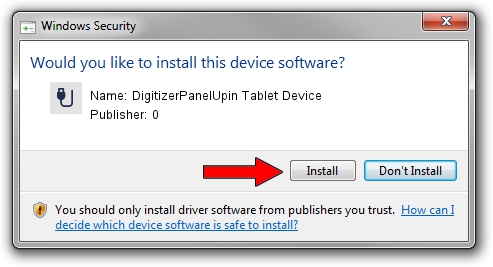
- Start the driver installation file from a Windows account with the highest privileges (rights). If your UAC (User Access Control) is enabled then you will have to confirm the installation of the driver and run the setup with administrative rights.
- Go through the driver installation wizard, which should be quite easy to follow. The driver installation wizard will analyze your PC for compatible devices and will install the driver.
- Restart your computer and enjoy the fresh driver, it is as simple as that.
The file size of this driver is 39492 bytes (38.57 KB)
Driver rating 4.3 stars out of 85166 votes.
This driver is fully compatible with the following versions of Windows:
- This driver works on Windows 2000 64 bits
- This driver works on Windows Server 2003 64 bits
- This driver works on Windows XP 64 bits
- This driver works on Windows Vista 64 bits
- This driver works on Windows 7 64 bits
- This driver works on Windows 8 64 bits
- This driver works on Windows 8.1 64 bits
- This driver works on Windows 10 64 bits
- This driver works on Windows 11 64 bits
2. Installing the 0 DigitizerPanelUpin Tablet Device driver using DriverMax: the easy way
The advantage of using DriverMax is that it will setup the driver for you in just a few seconds and it will keep each driver up to date, not just this one. How easy can you install a driver with DriverMax? Let's take a look!
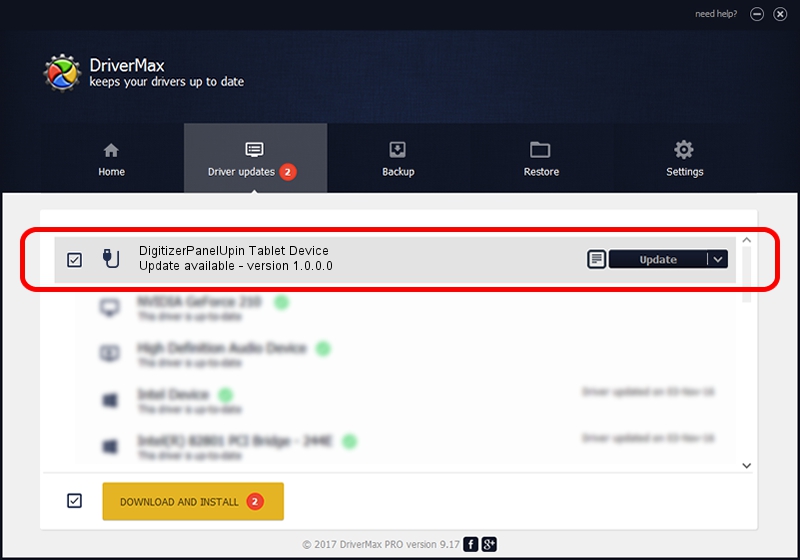
- Start DriverMax and press on the yellow button named ~SCAN FOR DRIVER UPDATES NOW~. Wait for DriverMax to analyze each driver on your computer.
- Take a look at the list of available driver updates. Search the list until you find the 0 DigitizerPanelUpin Tablet Device driver. Click the Update button.
- Enjoy using the updated driver! :)

Jul 27 2024 4:29AM / Written by Dan Armano for DriverMax
follow @danarm